Every computer user has the application most frequently opened, how this application can easily access us? one way is to take a short-cut, but for those of you who do not like clutter your desktop screen, the following ways you can apply. Follow the step by step below.
For example, we will add a notepad to the right-click menu.
Open your Registry Editor and follow the path below:
HKEY_CLASSES_ROOT Directory Background shell
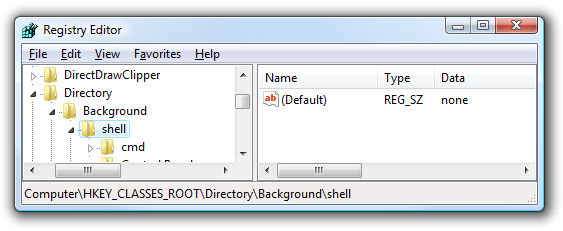
Right-click on the shell> New> Key and write the name of the application you wish, this name will later appear on the menu.
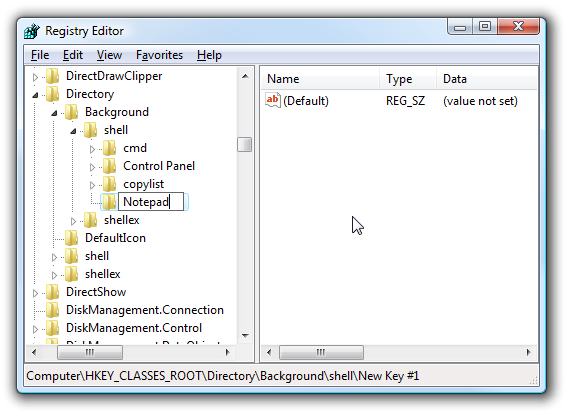
Right-click on the Notepad> New> Key and create a new key with the command name (in lowercase/lowercase).

Next, you need the full path of the application you want, connect, and put it into the command value. for example, notepad can be obtained as the following caption:

Click on the command and double-click the default key on the right hand and then input the application path that has been copied.
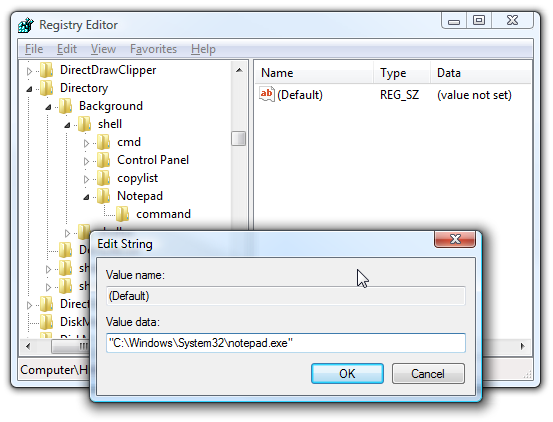
Click ok then restart the computer, right-click on a desktop computer and you will see something new on the right-click menu, good luck! ;)